How to Crop PDF Margins and Adjust Page Size Offline
Published on: June 9, 2026 | Category: Office Productivity
Excessive white spaces around PDF pages make text lines look small and sparse, severely hurting reading comfort on mobile screens, Kindle readers, or tablets. Learning to crop PDF margins is a highly useful skill to focus reading layouts and standardize printable pages.
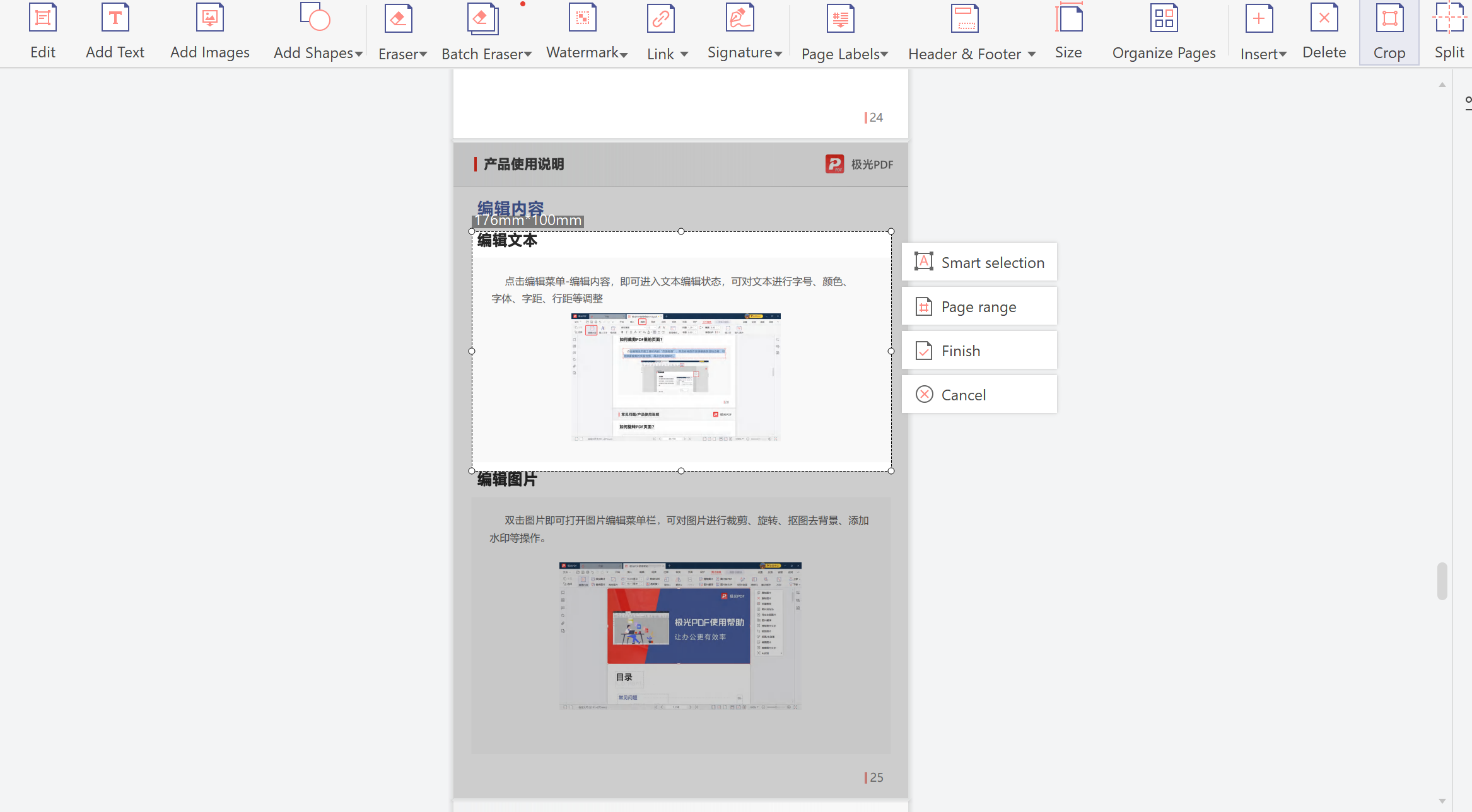
Step-by-Step Guide to Crop PDF Margins Securely Offline
Excessive white space around document content wastes paper when printing and creates a poor reading experience on small screens. Cropping PDF margins trims away unused area while preserving all content at full resolution. This tutorial covers manual and automatic margin cropping — including how to handle mixed page sizes within a single document.
Follow these 3 simple steps to complete your task in seconds:
- Start PDF Agile: Open PDF Agile offline on your Windows device, and load your file.
- Launch Crop Tool: Click the Page Layout tab and select the Crop Page tool.
- Adjust Crop Bounds: Drag the dotted selection rectangle to trim empty outer spaces, or input precise dimensions in the configuration panel. Click Apply to crop all pages uniformly.
Pro Tip: PDF Agile provides professional Page Box tools (CropBox, ArtBox, BleedBox, TrimBox) to let print designers customize exact printing bleeding widths safely offline.
Need Safe Local PDF Formatting?
Download PDF Agile to batch-paginate, crop margins, insert headers/footers, and split dual-column pages with 100% offline security.
Download PDF Agile for Windows